




Most people move their number onto an iPhone 18 Pro in one step, during setup: eSIM Quick Transfer brings the line over from the old iPhone, and once it activates on the new phone, the old SIM is deactivated. If your number still lives on a plastic SIM, you can move the card to the new tray or convert it to an eSIM where your operator allows it; on the eSIM-only models sold in twelve markets, it has to become an eSIM. A Horizon travel eSIM follows its own rule: it is handled from My eSIMs and the selected plan's instructions, not by Quick Transfer.
Do it at home, several days before you fly. Apple put the iPhone 18 Pro on sale on 18 September 2026 in more than 65 countries and regions, with twenty more from 25 September. The transfer wants both phones side by side, and a line that stalls halfway needs your operator's helpline or shop, which is easy to reach from your sofa and awkward from a departure lounge. Until the new phone shows every line, the old iPhone still holds your number: keep it charged and do not erase it.

iPhone to iPhone: Quick Transfer, during setup or from Settings
If the new iPhone offers to transfer your number during setup, follow the prompts; they handle a line on a physical SIM as well as an eSIM, and with iOS 26 or later more than one number can come over. Apple asks for four things first: the same Apple Account on both phones, the old iPhone unlocked, both close together with Bluetooth on, and both on iOS 18.4 or later. The 18 Pro ships with iOS 27, so the phone that may need an update is the old one.
Skipped the prompt? It works later too:
- On the new iPhone, open Settings and tap Cellular (in some regions, Mobile Service or Mobile Data).
- Tap Set Up Cellular or Add eSIM.
- Choose the number to bring over, or tap Transfer From Nearby iPhone if no list appears.
- On the old iPhone, confirm with Transfer, or type in the code the new iPhone shows if you are asked for one.
- Wait for the line to activate. If a banner reads Finish Setting Up Your Carrier's Cellular Plan, tap it to finish on your operator's page.
All of this rests on one condition, which Apple's eSIM setup article puts first: your operator has to support eSIM Quick Transfer. If yours does not, the operator route below applies. Once the move succeeds, the number stops working on the old iPhone, so call and text from the new one before you erase anything.
A plastic SIM: move it, convert it, or trade it for an eSIM
Outside the twelve eSIM-only markets, the iPhone 18 Pro has a nano-SIM tray as well as dual eSIM support, and moving the card from the old phone to the new one is still the simplest route. To hold the line as an eSIM instead, Apple's iPhone guide gives the path where your operator supports conversion:
- Open Settings, tap Cellular, then Set Up Cellular or Add eSIM.
- Choose the number that is on the physical SIM.
- Tap Convert to eSIM and follow the prompts.
After the conversion the plastic card no longer works, so it is not a spare for your wallet.
In the twelve eSIM-only markets, among them the United States, Canada, Mexico, Japan and the Gulf states, the 18 Pro and Pro Max have no tray, so a card line has to become an eSIM: through the setup prompts where your operator supports that, or by asking the operator to issue one. Is the iPhone 18 Pro eSIM-only? lists all twelve.
Coming from Android: a direct route, if your operator is on Apple's list
From a non-Apple phone, Apple's first answer is the operator, which can move the number by carrier activation or a QR code. With iOS 26 and later there is also a direct transfer, with conditions: a compatible Android phone on Android 16 or later, both phones on Wi-Fi with Bluetooth on, and an operator on Apple's short, country-by-country list.
On the iPhone, open Settings, tap Set Up Cellular (or Cellular, then Add eSIM, if a line is already installed) and choose Transfer from Android. Scan the QR code the iPhone shows with the Android camera, pick the number on the Android and tap Transfer. If the camera will not read the code, Apple's Android transfer article describes a pairing route through the Android's Google settings. When the transfer completes, the SIM on the Android is deactivated.
When only the operator can move the line
eSIM Carrier Activation is what usually happens when you buy the phone from an operator or ask one for an eSIM: a notification reading Carrier Cellular Plan Ready to Be Installed appears, you tap it, then Continue. Other operators send a QR code, a link or an app. In some countries the eSIM may have to be activated in the operator's shop after an identity check.
Whether your line can become an eSIM at all is the operator's call, so ask about your own line, prepaid or contract, before buying a model without a tray.
The travel eSIM already on your old phone
Quick Transfer moves lines whose operator supports it; do not count on it for a travel eSIM. Do not delete that profile from the old phone as part of the move either: whether a profile can be installed again depends on the plan and the provider, and adding data to a removed eSIM does not bring it back.
Start from My eSIMs, where Horizon keeps each eSIM's install and SIM details, and read the selected plan's instructions; if they leave the question open, ask support before removing anything. A plan that cannot move can still come along. Hotspot sharing is free on every Horizon plan, so on a compatible device the old phone can carry the travel line and share it with the new one.
The next trip, on the new phone
For the next trip, get a new eSIM for the new phone; Horizon's device list includes both the iPhone 18 Pro and the Pro Max. If you are signed in and already hold an eSIM the plan could be added to, the purchase asks where it should go: choose a new eSIM for a new phone, since adding it to the existing one puts the data on the old iPhone.
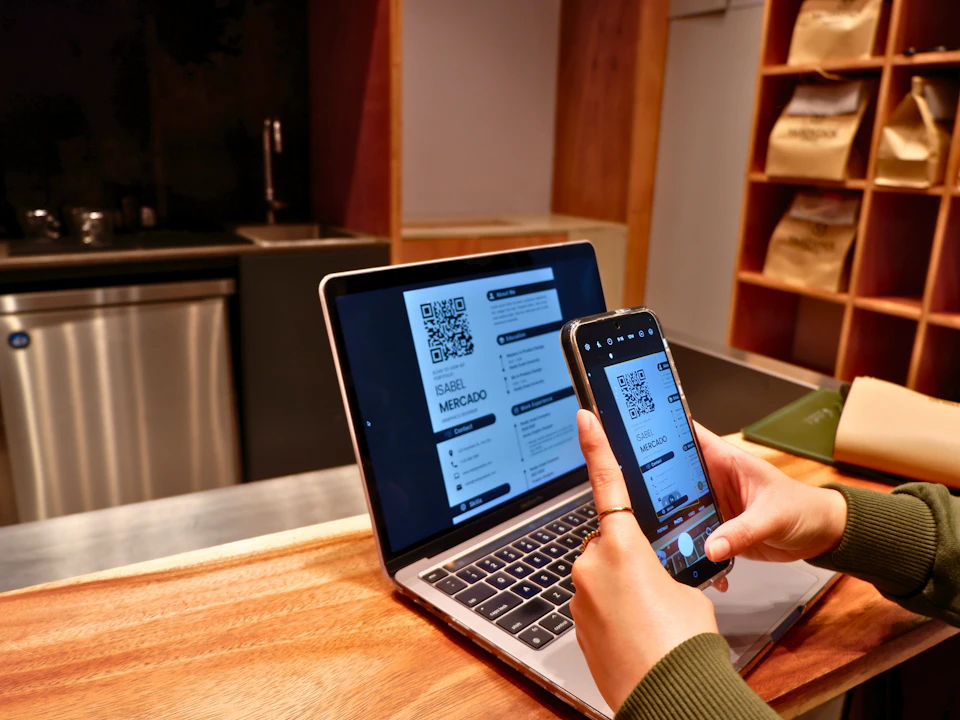
Set it up on home Wi-Fi with the installation guide. A camera cannot scan a QR code shown on its own phone's screen, so open the email on a laptop and scan it from there, or type in the manual details sent with the code. Before installing, read the validity line on the listing: it names which event opens the window, and what starts an eSIM's validity walks through the cases.
The week before you fly, in order
- Update the old iPhone to iOS 18.4 or later, and back it up.
- Charge both phones, put them on Wi-Fi and turn Bluetooth on.
- If the new phone came from an operator, check that Settings, General, About shows No SIM Restrictions next to Carrier Lock; a locked phone cannot take another provider's eSIM.
- Move your home number, or numbers, then call and text from the new phone.
- While the old phone is within reach, sign in to your banking app and any app that verifies you by text; some may send a code or ask you to approve the new phone from the old one.
- Label the lines, say Home and Travel, so the choice for calls and data is obvious.
- On the trip, pick the travel line for cellular data and turn data roaming on for it alone; the home line handles calls and texts on your operator's own roaming terms. How to check data usage on iPhone shows where the counter is.
- Erase or trade in the old iPhone only when your home lines work on the new one and you know what happens to the travel eSIM.
Short answers
Can I move my eSIM to an iPhone 18 Pro without calling my operator? Yes, if your operator supports eSIM Quick Transfer, during setup or later from Settings. If not, the operator moves the line by carrier activation or a QR code.
What happens to the line on my old iPhone? Apple says the old SIM is deactivated once the line activates on the new phone, so keep the old iPhone until calls and texts work on the new one.
Can I transfer from an Android phone? Directly, with iOS 26 or later, a compatible phone on Android 16 or later and an operator on Apple's list; otherwise through the operator.
Does my Horizon travel eSIM move with Quick Transfer? Do not count on it. Keep the profile on the old phone, follow the plan's instructions in My eSIMs, and ask support before deleting anything.
Can one number work on two iPhones? Not after a normal transfer. iOS 27 adds iPhone Handoff, which shares one number between two iPhones and keeps it active on one at a time, but only with operators that support it; at launch Apple named two, one in the United States and one in Germany.